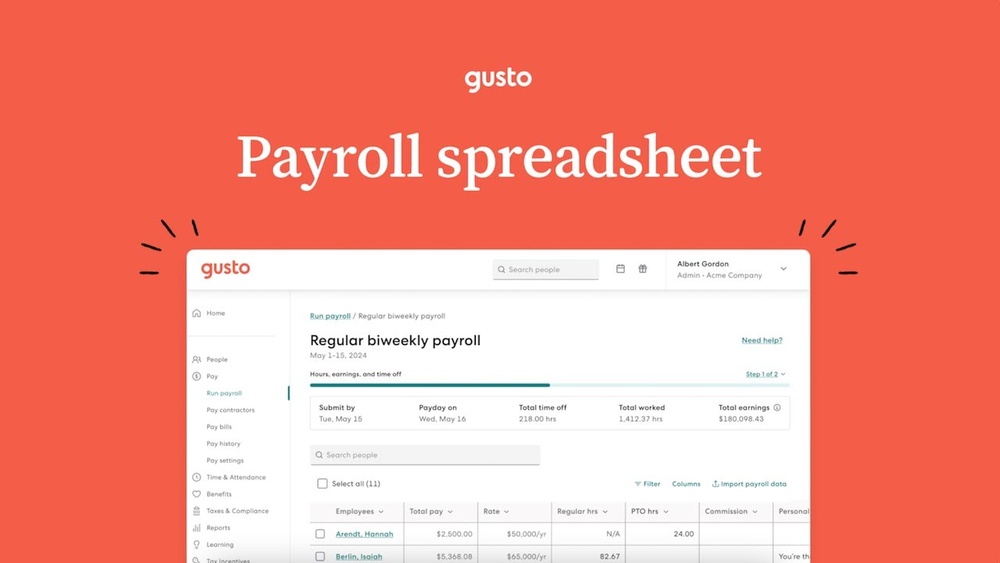

Running payroll can feel overwhelming, especially when you want to get it right without wasting time. But what if you had a simple, step-by-step way to handle it smoothly every pay period?
If you’re using Gusto, you’re already halfway there. This guide will show you exactly how to run payroll in Gusto, so you can pay your team accurately and on time—without stress. Keep reading, and you’ll discover the easy process that makes payroll one less thing to worry about.
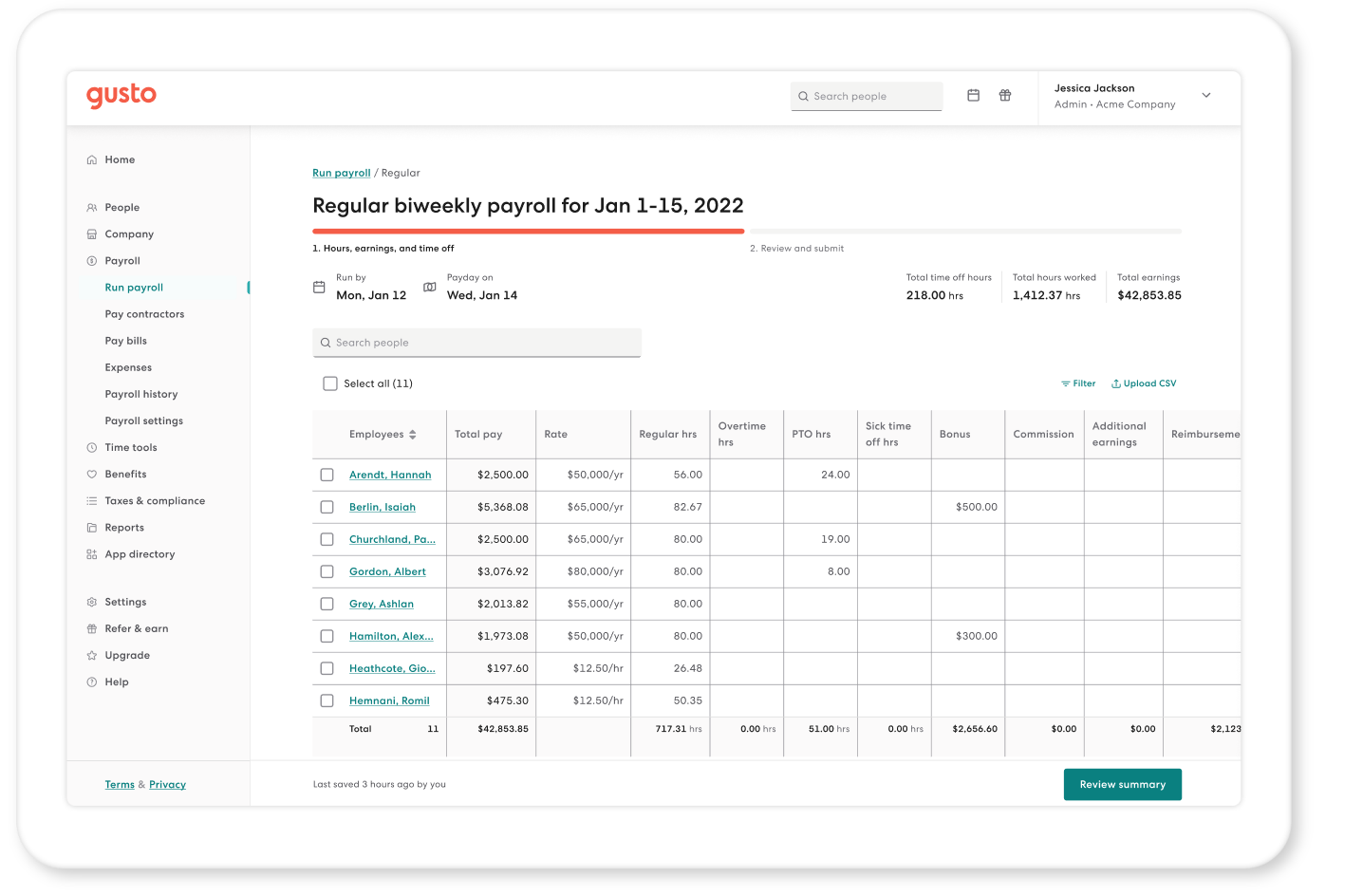
Credit: gusto.com
Getting Started With Gusto Payroll
Starting payroll with Gusto is simple and fast. It helps small businesses pay employees and contractors correctly. The setup process guides you step-by-step. You can manage everything in one place.
Focus on three main steps: setting up your company profile, adding employees and contractors, and setting payment schedules. Each step is important to ensure smooth payroll operations.
Setting Up Your Company Profile
Begin by entering your company’s basic information. This includes your business name, address, and tax details. Gusto uses this data to handle payroll taxes properly.
Next, add your bank account for payroll deposits. Double-check all information for accuracy. This step ensures employees get paid on time.
Adding Employees And Contractors
Enter details for each worker. Include full name, email, and tax information. For employees, add salary or hourly wage.
For contractors, specify payment rates. Gusto keeps employee and contractor records separate. This helps with correct tax reporting.
Configuring Payment Schedules
Choose how often you want to pay your team. Options include weekly, biweekly, or monthly. Select dates that fit your business cash flow.
Set payday and cutoff dates clearly. Gusto will use these dates to process payroll automatically. This avoids late payments and confusion.
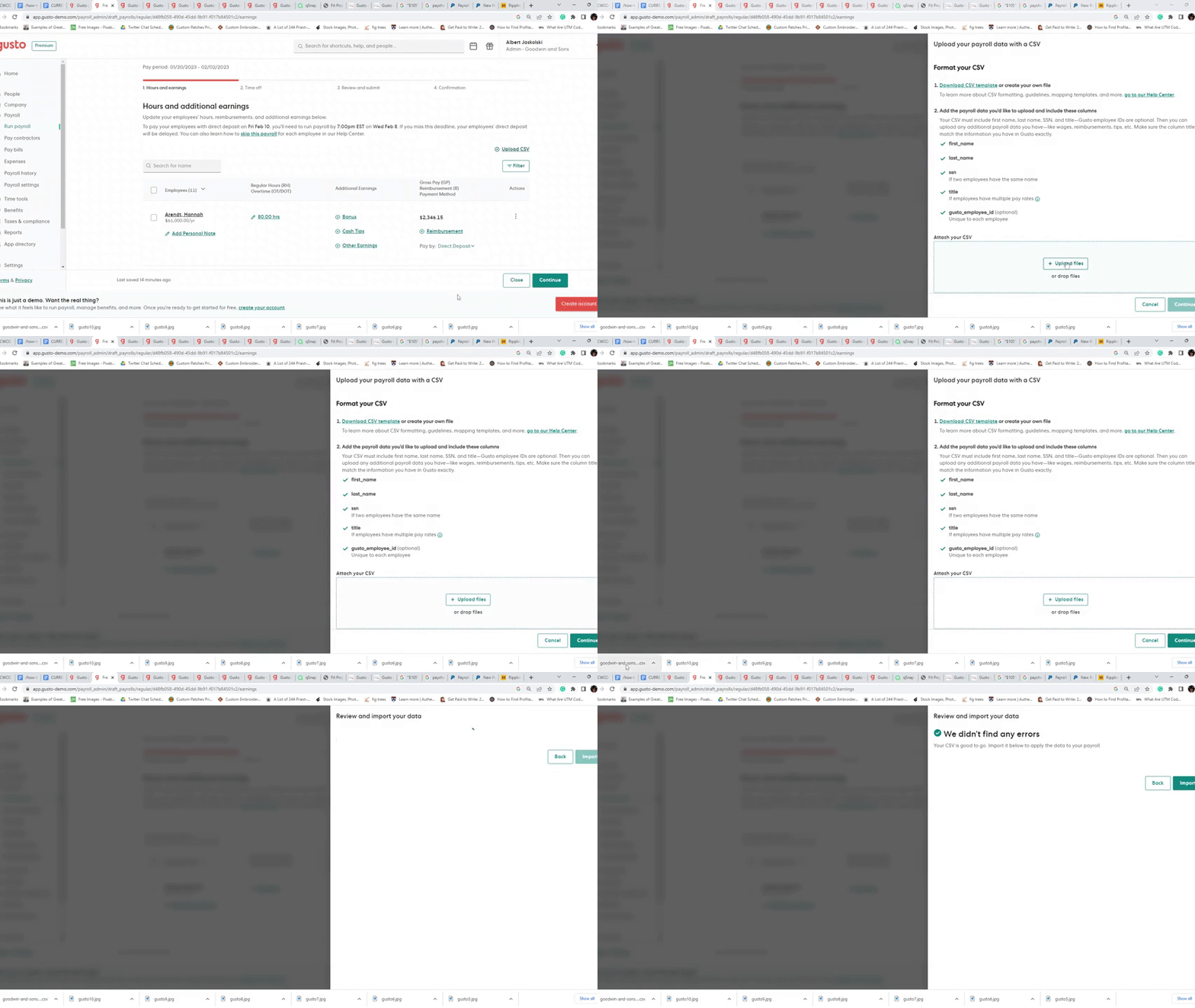
Credit: fitsmallbusiness.com
Entering Payroll Information
Entering payroll information in Gusto is a key step in paying your employees correctly. This process involves adding work hours, earnings, bonuses, commissions, deductions, and benefits. Accuracy here ensures smooth payroll runs and satisfied employees.
Gusto’s user-friendly interface makes entering this information simple. Each section is designed to guide you through the process quickly. Understanding how to input each detail helps avoid mistakes and saves time.
Inputting Hours And Earnings
Start by entering the hours your employees worked. Gusto allows you to add regular and overtime hours separately. This helps calculate pay precisely based on work time. You can also enter fixed salaries for salaried workers. Ensure all hours match your records before proceeding.
Handling Bonuses And Commissions
Add bonuses or commissions next. Gusto lets you enter these amounts easily. You can specify if these payments are one-time or recurring. This section helps reward employees fairly and keeps payroll accurate. Double-check amounts to avoid errors.
Managing Deductions And Benefits
Finally, include any deductions and benefits. These might be taxes, health insurance, or retirement contributions. Gusto tracks these automatically but allows manual edits if needed. Clear entries here ensure correct withholding and compliance.
Reviewing And Approving Payroll
Reviewing and approving payroll in Gusto is a crucial step. It ensures every employee is paid correctly. Mistakes can cause delays or legal issues. This step helps catch errors before payments go out.
Careful review builds trust with your team. It also keeps your business compliant with tax laws. Taking time to check details pays off in smooth payroll processing.
Verifying Employee Details
Start by confirming each employee’s information. Check names, addresses, and job titles. Make sure no changes are missing. Correct details prevent payment errors and tax issues.
Update any new hires or terminations. Confirm the pay schedule for each worker. Small mistakes here can cause big problems later.
Checking Tax Withholdings
Review all tax withholding settings for accuracy. Federal, state, and local taxes must be correct. Confirm exemptions and allowances match employee forms. Mistakes in taxes can lead to penalties.
Look for any changes in tax laws. Make sure the system reflects these updates. Proper tax handling keeps your business safe.
Confirming Payment Amounts
Double-check total pay for each employee. Include hours worked, overtime, and bonuses. Watch for missing or extra payments. Verify deductions like benefits and garnishments.
Accurate payment amounts keep employees happy. Avoid complaints and confusion. This final check is key to smooth payroll runs.
Running Payroll In Gusto
Running payroll in Gusto is straightforward and user-friendly. It helps businesses pay employees quickly and accurately. The platform guides you through each step, reducing errors and saving time.
Understanding how to submit payroll, schedule deposits, and print paychecks is essential. These tasks ensure employees receive their pay on time. Let’s explore each step in detail.
Submitting Payroll For Processing
Start by logging into your Gusto account. Review employee hours and earnings carefully. Check for any bonuses or deductions. Confirm all information is correct to avoid mistakes.
Click the “Submit Payroll” button to process payment. Gusto calculates taxes and withholdings automatically. The system prepares all necessary reports and filings.
Scheduling Direct Deposits
Gusto offers direct deposit to pay employees quickly. Choose the pay date for the deposit to go out. Ensure all employee bank details are updated and accurate.
Direct deposits usually arrive on the scheduled pay date. This method is secure and convenient for both employers and employees. Employees can access their pay immediately.
Printing Paychecks
Some employees prefer physical paychecks instead of direct deposit. Gusto allows printing paychecks directly from the platform. Select the employees who need printed checks.
Use the provided check stock and print carefully. Keep a record of all printed paychecks for your files. Deliver checks to employees on payday.
Post-payroll Tasks
After running payroll in Gusto, several important tasks need your attention. These tasks keep your payroll process smooth and compliant. Taking care of these steps helps employees stay informed and keeps your business legal. Let’s explore the key post-payroll tasks in detail.
Distributing Pay Stubs
Gusto automatically creates pay stubs for each employee. You can choose to send them by email or let employees access them through their account. Pay stubs show important details like hours worked and taxes withheld. Sharing pay stubs quickly builds trust and clears up any confusion.
Filing Taxes And Reports
Gusto helps by calculating and filing payroll taxes. It sends federal, state, and local tax payments on time. The platform also prepares tax forms like W-2s and 1099s. Filing taxes accurately avoids penalties and keeps your business in good standing.
Handling Payroll Corrections
Mistakes can happen during payroll processing. Gusto allows you to fix errors such as wrong hours or tax withholdings. Corrections can be made before or after payments. Timely fixes prevent bigger problems and keep employee records accurate.
Tips For Accurate Payroll Management
Accurate payroll management is essential for smooth business operations. It helps avoid errors that can cause employee dissatisfaction and legal issues. Using Gusto makes payroll easier, but attention to detail remains important. Follow these tips to keep your payroll process accurate and efficient.
Keeping Employee Information Updated
Always keep employee details current. Update changes like address, tax status, and bank info promptly. Accurate data ensures correct tax deductions and payments. Regular updates prevent payroll mistakes and delays.
Regularly Reviewing Payroll Reports
Check payroll reports every pay cycle. Review hours, wages, and deductions carefully. Spot errors early to fix them fast. Consistent review helps maintain payroll accuracy and compliance.
Using Gusto’s Support Resources
Use Gusto’s help center and guides for payroll questions. Access tutorials and FAQs to solve common problems. Contact support for complex issues. Support resources save time and reduce errors.

Credit: gusto.com
Frequently Asked Questions
How Do I Set Up Payroll In Gusto?
To set up payroll in Gusto, create an account, enter company details, add employees, and configure pay schedules. Verify tax information and direct deposit details. This setup ensures smooth and accurate payroll processing for your business.
Can I Run Payroll Multiple Times A Month In Gusto?
Yes, Gusto allows multiple payroll runs each month. You can process regular and off-cycle payrolls as needed. This flexibility helps manage employee payments efficiently and handle bonuses or corrections promptly.
How Does Gusto Handle Tax Filings?
Gusto automatically calculates, withholds, and files federal, state, and local payroll taxes. It also generates W-2s and 1099s. This automation ensures compliance and reduces your administrative burden.
What Employee Information Is Required To Run Payroll?
You need employees’ full names, Social Security numbers, addresses, pay rates, and tax withholding details. Accurate data entry is crucial for correct payroll processing and tax reporting.
Conclusion
Running payroll in Gusto is simple and saves time. Follow each step carefully to avoid mistakes. Double-check employee details and payment amounts before submitting. Gusto helps keep your records organized and compliant. Regular payroll keeps your team happy and paid on time.
Use the tools Gusto offers to track taxes and deductions easily. Stay consistent and review your payroll regularly for accuracy. This way, you can focus on growing your business without payroll stress.
