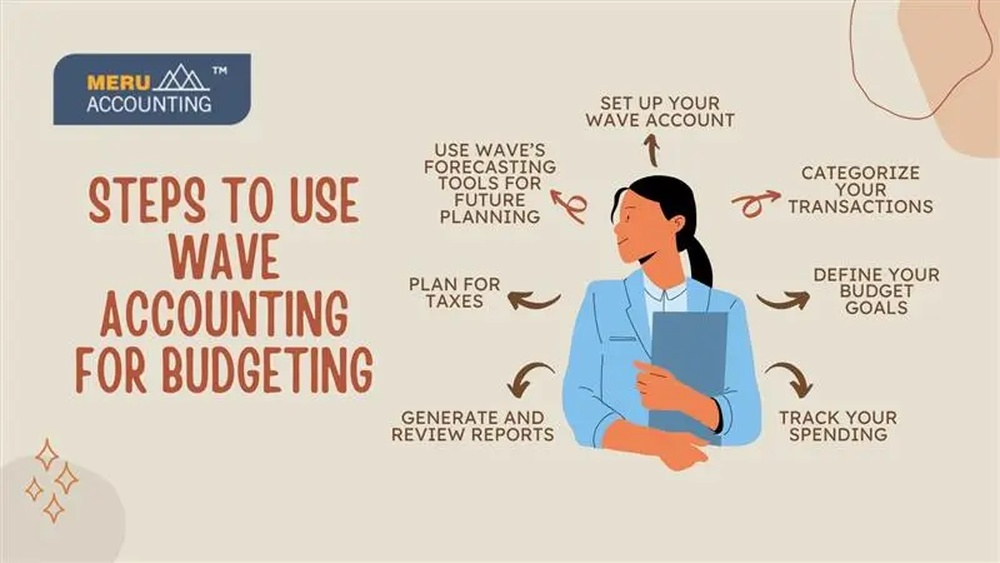

If you have a small business or you want to keep track of your money, Wave Accounting is a good choice. It is a free tool that helps you with your business money. This guide will help you learn how to use Wave Accounting step by step. You do not need to know much about accounting. We will explain everything in simple words.
What is Wave Accounting?
Wave Accounting is a free program you can use online. It helps you keep track of your income and expenses. You can use it to send invoices, track bills, and see how your business is doing. Many people who have small businesses use Wave because it is easy and free.
How to Start Using Wave Accounting
First, you need to create an account. Follow these simple steps:
- Go to the Wave website at waveapps.com.
- Click on the “Sign Up” button.
- Enter your email and create a password.
- Choose your country and currency.
- Click “Create your account.”
Now you have a Wave account. You can start adding your business information.
Set Up Your Business Profile
After signing up, you should add details about your business. This helps Wave create reports that fit your needs. Here is how:
- Go to “Settings.”
- Click on “Business Profile.”
- Add your business name.
- Write your business address.
- Upload your logo if you want.
This will help your invoices and reports look professional.
Add Your Bank Account
Connecting your bank account is important. It helps Wave track your money automatically. You can add your bank account like this:
- Go to “Banking” on the left menu.
- Click “Add a bank account.”
- Search for your bank or enter details manually.
- Enter your bank login details if needed.
- Wave will connect and start showing your transactions.
Now you can see your income and expenses in one place.
How to Create an Invoice in Wave
Invoices are bills you send to your customers. Wave makes it easy to create them. Follow these steps:
- Click on “Sales” in the menu.
- Select “Invoices.”
- Click “Create an Invoice.”
- Add your customer’s name and email.
- Write the items or services you sold.
- Enter the price for each item.
- Choose the due date.
- Click “Send” to email the invoice to your customer.
You can also save invoices as PDFs to print or send later.

Credit: www.meruaccounting.com
Track Your Expenses Easily
Keeping track of your expenses helps you know where your money goes. Wave makes this simple:
- Go to “Purchases” in the menu.
- Click “Bills.”
- Click “Add a Bill.”
- Write the name of the supplier or store.
- Enter the amount you paid or owe.
- Add the date and due date.
- Save the bill.
You can also upload a photo or file of your receipt to keep records.
How to Connect Your Credit Card
Just like your bank account, you can connect your credit card. This helps Wave track your spending. To add your credit card:
- Go to “Banking.”
- Click “Add a bank account.”
- Search for your credit card company.
- Enter your login details.
- Wave will download your credit card transactions.
Now you see all your expenses in one place.
How to Record Payments in Wave
When your customer pays an invoice, you need to record it. Here is how to do it:
- Go to “Sales” and then “Invoices.”
- Find the invoice that was paid.
- Click “Record a Payment.”
- Enter the amount received.
- Choose the payment method (cash, bank transfer, etc.).
- Save the payment.
This helps you keep your money records correct.
Run Financial Reports
Wave can create reports to show how your business is doing. You can see your profit, expenses, and more. To see reports:
- Go to “Reports” in the menu.
- Choose the report you want, like “Profit & Loss” or “Balance Sheet.”
- Select the time period you want to see.
- Click “View Report.”
These reports help you understand your business better.
Use Wave on Mobile
You can use Wave on your phone or tablet too. There is a free app for both Android and iPhone. The app lets you:
- Create and send invoices.
- Scan receipts to add expenses.
- See your income and expenses.
This way, you can work on your business money anywhere.
Tips for Using Wave Accounting
- Check your bank and credit card transactions often.
- Keep your invoices clear and simple.
- Upload your receipts to keep good records.
- Review your reports monthly to understand your money.
- Always save your work to avoid data loss.

Credit: www.youtube.com
Summary Table: Key Features of Wave Accounting
| Feature | What It Does | Benefit |
|---|---|---|
| Bank Connection | Links your bank account to Wave. | Tracks money automatically. |
| Invoice Creation | Lets you make and send invoices. | Gets money from customers faster. |
| Expense Tracking | Records all bills and purchases. | Shows where your money goes. |
| Reports | Creates financial reports. | Helps you understand business health. |
| Mobile App | Use Wave on your phone. | Manage money anywhere. |
Frequently Asked Questions
What Is Wave Accounting Used For?
Wave Accounting helps small businesses track income, expenses, and invoices. It simplifies managing finances in one place.
How Do I Create An Invoice In Wave?
To create an invoice, click “Invoices,” then “Create New. ” Add customer details, items, and send it directly.
Can Wave Accounting Connect To My Bank Account?
Yes, Wave can link to most banks. It automatically imports transactions to save time.
Is Wave Accounting Free To Use?
Wave offers free accounting, invoicing, and receipt scanning. Some services like payroll may have fees.
Conclusion
Wave Accounting is a good tool for small business owners. It is free, simple, and helps you keep your money organized. You can create invoices, track expenses, and see reports. Start by creating your account, add your bank, and try making an invoice today. Step by step, you will get comfortable with Wave. It helps you save time and keep your business money safe.
