
Are you worried about losing your important financial data in QuickBooks Online? You’re not alone.
Many people wonder, “How do I backup QuickBooks Online? ” Keeping a secure copy of your data is crucial to avoid costly mistakes and downtime. You’ll discover simple, effective ways to protect your information so you can focus on growing your business without fear.
Ready to take control of your data backup? Let’s dive in and make sure your QuickBooks files are safe and sound.
Importance Of Backing Up Quickbooks Online
Backing up QuickBooks Online keeps your financial data safe. Data loss can happen due to errors, hacking, or software problems. A backup helps you recover information quickly without stress.
QuickBooks Online stores data in the cloud, but accidents can still occur. Regular backups prevent losing important transactions and reports. They also protect against unexpected issues like account lockouts.
Having a backup means you can restore your business records anytime. It saves time and avoids costly mistakes. Always keep backups in a secure place, separate from your main files.
Built-in Data Protection Features
QuickBooks Online includes built-in data protection that helps keep your information safe. The system automatically saves your data on secure servers. This means you do not have to worry about losing files. Your work is backed up regularly without any extra steps.
Data is stored in multiple locations. This protects against hardware failures or accidents. QuickBooks also uses encryption to keep your data private. Only authorized people can access your account.
These features reduce risks of data loss or theft. You can focus on your work while your data stays safe and secure. No manual backup is needed for peace of mind.
Manual Backup Methods
Exporting reports helps save important financial data from QuickBooks Online. You can export reports like Profit & Loss, Balance Sheet, or Transaction List as Excel or PDF files. These files can be stored on your computer or cloud storage for safety.
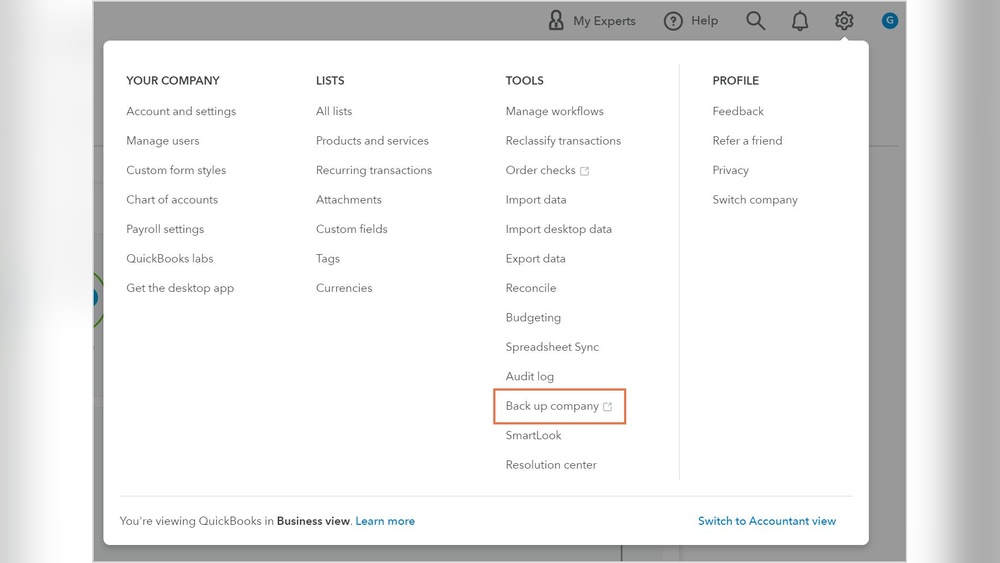
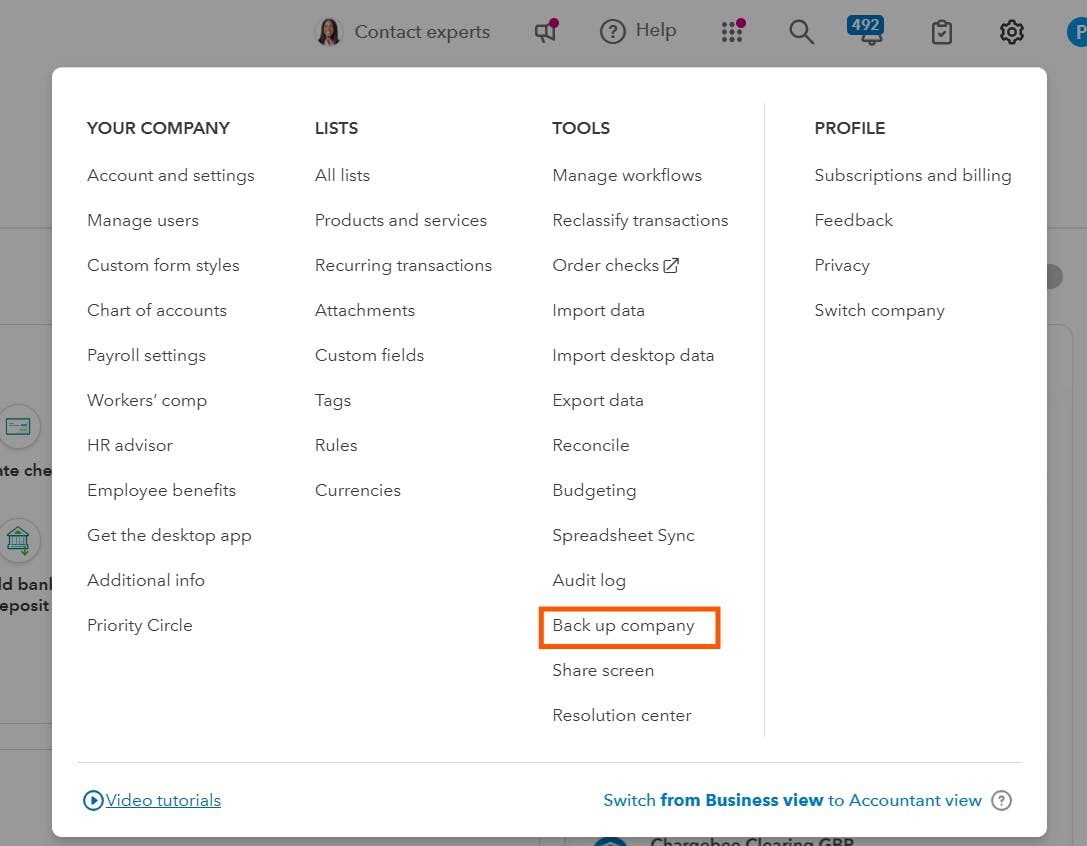
Downloading company files is another way to back up data manually. QuickBooks Online lets you download your company data as an Intuit Interchange Format (IIF) file. This file includes lists and transactions but may not have all details. Save the file on your device for easy access.
Both methods give you control over your data outside QuickBooks. Use Excel or PDF to view reports anytime. Keep IIF files safe to restore data if needed. Regular backups protect your business records from loss.
Credit: www.syscloud.com
Using Third-party Backup Solutions
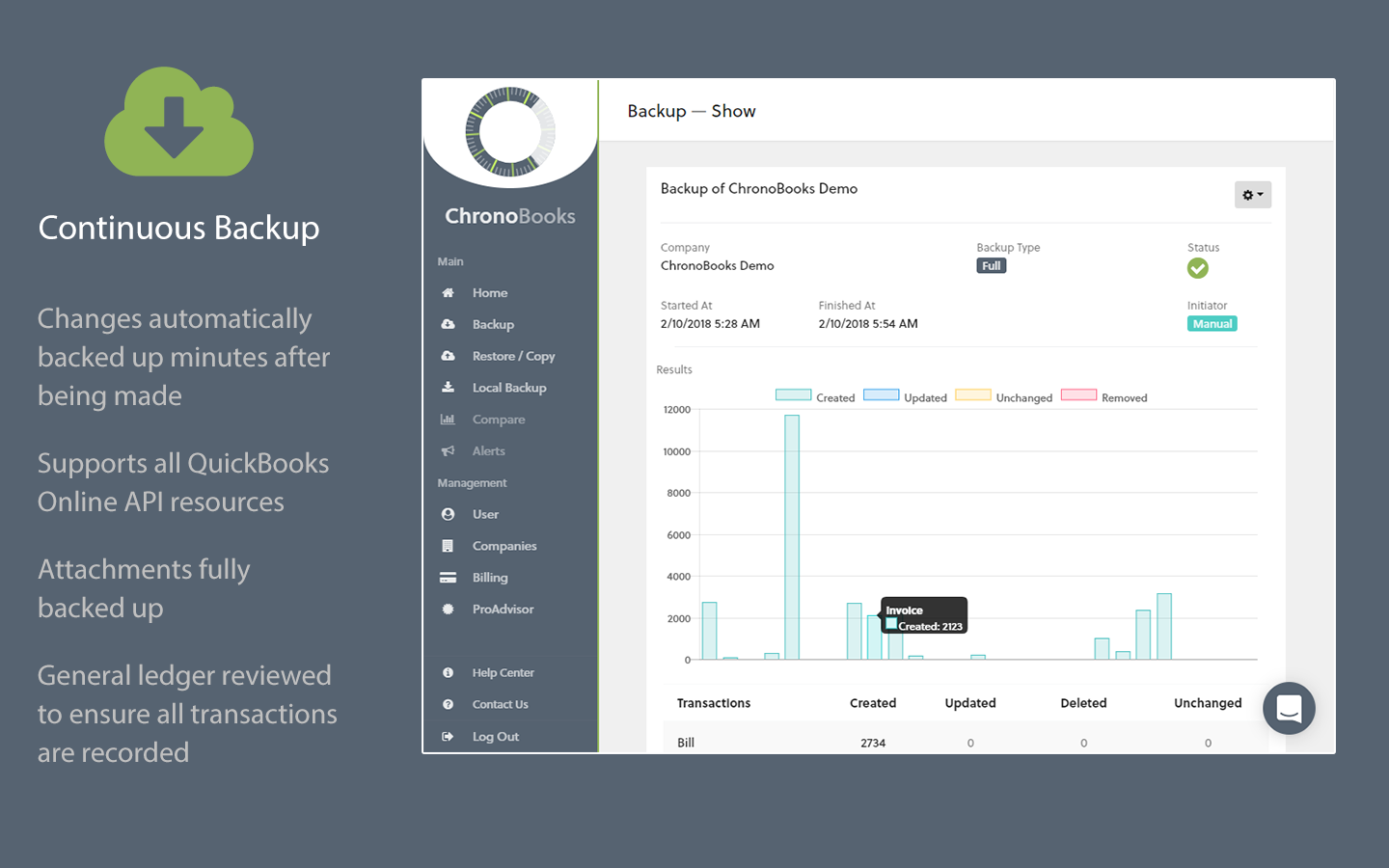
Many third-party tools help with QuickBooks Online backup. These tools save your data safely outside QuickBooks. Popular backup tools include Rewind, BackupCircle, and Datto. They automatically save your files on a schedule you choose. This keeps your information safe even if you lose access to QuickBooks.
Automated backups offer many benefits. They reduce the risk of data loss by saving copies regularly. These backups can restore your data quickly after mistakes or crashes. Automatic backups also save you time and effort because you do not need to remember manual backups. Many tools let you choose how often to backup and where to store data. This gives you control and peace of mind.
Setting Up Scheduled Backups
Scheduled backups keep your QuickBooks Online data safe. Set a regular time to save your files. Choose daily, weekly, or monthly backups based on your needs. Use reliable backup tools or software that work well with QuickBooks Online. Make sure the backup location has enough space and is secure.
Check the backup settings often. Ensure backups run without errors. Test restoring data sometimes to confirm it works. This simple routine helps avoid data loss and keeps your business records safe.
Credit: quickbooks.intuit.com
Restoring Data From Backups
Restoring QuickBooks Online data from backups is simple. First, locate your backup file. It might be saved on your computer or cloud storage. Next, log into your QuickBooks Online account. Find the option to import or restore data. Select the backup file to upload. The system will guide you through the steps.
Make sure the backup file is complete and not corrupted. Partial backups can cause errors. Always keep multiple backup copies in different places. This protects your data from loss or damage. Regular backups help keep your financial records safe and updated.
Best Practices To Secure Quickbooks Data
Backing up QuickBooks Online helps keep your data safe. Set a regular backup schedule. Weekly backups are good for most users. More frequent backups suit businesses with lots of changes.
Choose cloud storage options like Google Drive, Dropbox, or OneDrive. These keep your backup files accessible and safe from device failures. Always keep at least two copies in different places.
Use data encryption to protect your backup files. Encryption changes data into a secret code. This stops others from reading your info if they find the files.

Credit: liveflow.com
Frequently Asked Questions
How Can I Backup Quickbooks Online Data Easily?
You can backup QuickBooks Online by exporting reports and lists. Use the Export to Excel feature for transactions and lists. Alternatively, use third-party apps designed for automated cloud backups. Regular backups protect your financial data from accidental loss or errors.
Does Quickbooks Online Automatically Save My Data?
Yes, QuickBooks Online automatically saves your data in real-time. Your information is securely stored on Intuit’s cloud servers. However, it is wise to create manual backups for extra security and offline access.
What Third-party Apps Backup Quickbooks Online?
Popular third-party backup apps include Rewind, BackupCircle, and ChronoBooks. These apps automate data backup and recovery for QuickBooks Online. They help ensure data safety beyond Intuit’s built-in protection.
Can I Export All Quickbooks Online Data At Once?
QuickBooks Online allows exporting reports and lists individually. There is no single button to export all data at once. Use third-party tools for complete, automated backups if needed.
Conclusion
Backing up QuickBooks Online protects your data from loss. Regular backups keep your financial information safe and easy to restore. Choose a method that fits your needs and schedule backups often. Simple steps can prevent big problems later. Stay consistent to avoid data headaches.
Keeping your QuickBooks data secure helps your business run smoothly. Don’t wait until trouble strikes—start backing up today.
