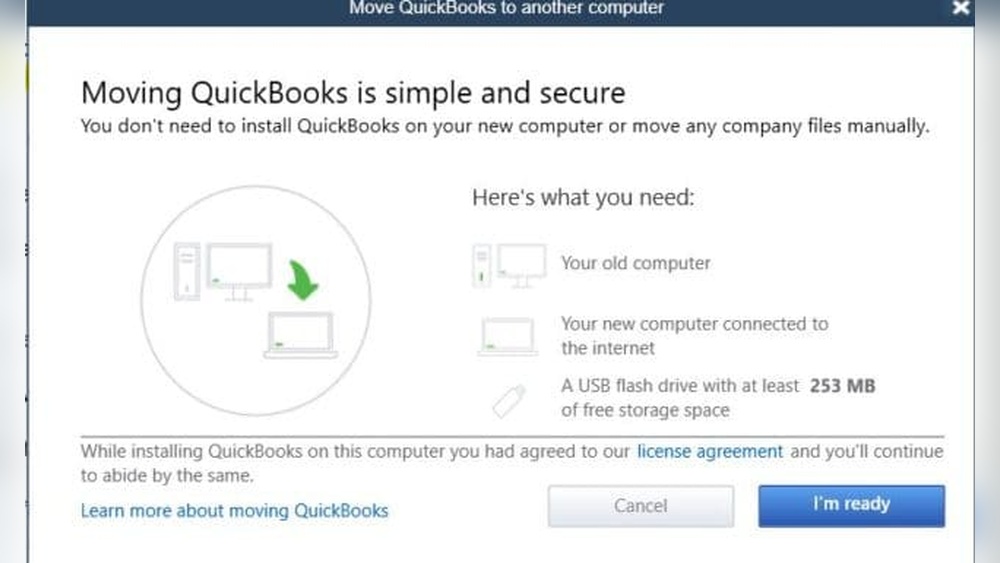

Are you wondering how to transfer QuickBooks from one computer to another without losing your important data? Moving your accounting software might sound tricky, but it doesn’t have to be.
Whether you’re upgrading your computer or simply switching devices, making sure your QuickBooks files move safely is crucial. In this guide, you’ll discover simple, step-by-step instructions to transfer QuickBooks quickly and securely. Keep reading to make your transition smooth and stress-free.

Credit: www.zinstall.com
Preparing For Transfer
Make sure the new computer meets QuickBooks system requirements. Check the operating system, processor, and RAM. This helps QuickBooks run smoothly. Also, verify enough free disk space is available for installation and data files.
Always back up your QuickBooks company file before moving. Use the backup option in QuickBooks to save your data on an external drive or cloud storage. This protects your data from loss during transfer.
Deactivate the QuickBooks license on the old computer. This step frees up the license for use on the new machine. Open QuickBooks, go to the Help menu, and select Deactivate License. This avoids activation issues later.
Installing Quickbooks On New Computer
Start by downloading the QuickBooks installation file from the official Intuit website. Make sure to choose the correct version that matches your license.
Once the download finishes, run the installer by double-clicking the file. Follow the on-screen instructions carefully to install the software on your new computer.
After installation, activate your QuickBooks license. Enter your license key and product number when prompted to unlock full features.
Moving Company Files
Find the QuickBooks company files on your old computer. These files usually end with .QBW. Check common folders like “Documents” or “QuickBooks” to locate them.
Copy the files to a USB drive or use a network connection to transfer them. Make sure the transfer device has enough space.
On the new computer, paste the files into a folder you can easily find. Open QuickBooks and select “Open or Restore a Company” to access your files. Browse to the folder and open the company file.
Verifying Data Integrity
Start by running the File Verification Utility in QuickBooks. This tool checks for any data errors in your company file. It helps to find corrupt or damaged data before moving files.
If the utility finds issues, try to resolve data problems using the QuickBooks built-in tools. Fixing errors early prevents problems on the new computer.
Always update QuickBooks software to the latest version. Updates include important fixes and improvements that keep your data safe. Using the same version on both computers avoids compatibility problems.
Tips For Smooth Transfer
Always keep your QuickBooks software updated before starting the transfer. Updates fix bugs and improve performance. This helps avoid problems during the move. Download updates from the official QuickBooks website.
The QuickBooks Tool Hub is a useful program. It helps fix common errors and problems. Run the Tool Hub to check for issues. It makes the transfer process easier and faster.
Sometimes, the transfer can be tricky. Professional support can help in such cases. Experts know how to handle complex issues. They save time and prevent data loss. Contact QuickBooks support if needed.

Credit: www.youtube.com
Credit: quickbooks.intuit.com
Frequently Asked Questions
How Do I Transfer Quickbooks To A New Computer?
You can transfer QuickBooks by installing the software on the new computer. Then, copy your company files from the old device. Use an external drive or cloud storage for the transfer. Finally, activate QuickBooks with your license on the new computer.
Can I Move Quickbooks Without Losing Data?
Yes, moving QuickBooks without data loss is possible. Always back up your company files before transferring. Use QuickBooks Backup feature to create a safe copy. Restore this backup on the new computer to ensure all your data stays intact.
What Are The System Requirements For Quickbooks Transfer?
Ensure the new computer meets QuickBooks’ system requirements. This includes compatible Windows or Mac OS, sufficient RAM, and disk space. Check Intuit’s official website for detailed specs. Meeting these requirements guarantees smooth installation and operation after transfer.
Is Quickbooks License Transferable To Another Computer?
Yes, your QuickBooks license can be transferred. Intuit allows license activation on a new device. Deactivate the license on the old computer if necessary. Always keep your license information ready during the transfer process.
Conclusion
Transferring QuickBooks from one computer to another is simple. Back up your company file carefully. Use the backup to restore data on the new device. Make sure both computers have the same QuickBooks version. Follow each step without rushing to avoid errors.
This helps keep your financial data safe and accessible. You can continue your work without losing information. Take time to double-check everything after the transfer. Now, managing your accounts on the new computer becomes easy.
