
Are you trying to decide between QuickBooks Desktop and QuickBooks Online but feel stuck? Choosing the right version can save you time, money, and headaches down the road.
You want software that fits your business needs perfectly without overwhelming you. This article breaks down the key differences clearly and simply, so you can make a smart choice with confidence. Keep reading, and by the end, you’ll know exactly which QuickBooks is right for you.
Quickbooks Desktop Features
QuickBooks Desktop requires installation on a computer. Setup can take some time but works well offline. The user interface is classic with menus and toolbars. It is easy to find options with clear navigation. All data is stored locally on your computer, so security depends on your device. Customization lets you tailor forms, invoices, and reports to fit your needs. Reporting is strong with many built-in templates and options. You can generate detailed financial reports quickly. Analytics tools help track your business health clearly. This version suits users who prefer working offline and want control over data storage.
Quickbooks Online Features
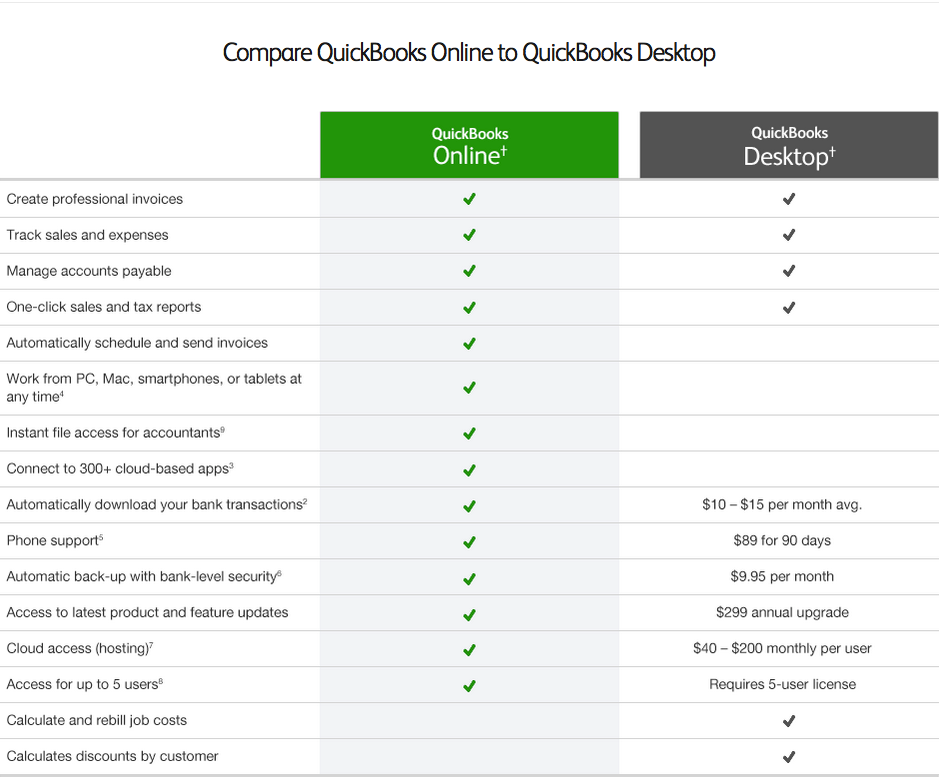
QuickBooks Online lets you access your data from anywhere using the internet. This cloud-based access means your files are always safe and updated. Teams can work together easily, sharing information in real time without delays.
The software gets automatic updates, so you always have the latest features without extra work. You can use the mobile app to manage your business on the go, making tasks simple and fast.
Third-party app support means QuickBooks Online works well with other tools you use. This helps you customize your experience and keep everything connected smoothly.
Pricing And Subscription Models
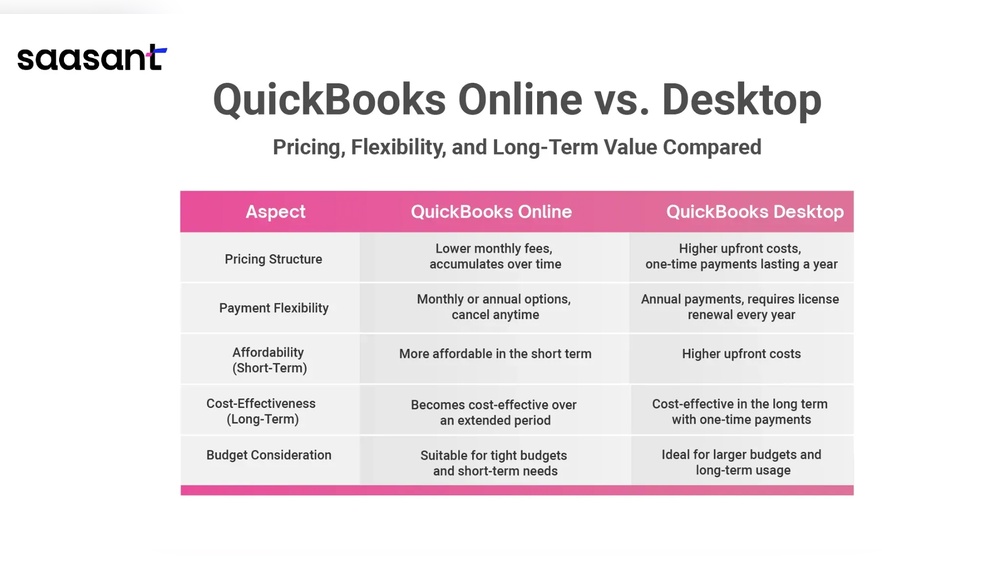
QuickBooks Desktop usually has a one-time purchase fee. This means you pay once and use it forever. QuickBooks Online works with monthly or yearly subscriptions. You pay as long as you use the service.
| Feature | QuickBooks Desktop | QuickBooks Online |
|---|---|---|
| Cost Model | One-time payment | Monthly or yearly subscription |
| Payment Plans | Pay once, no monthly fees | Pay monthly or annually |
| Upgrade Options | Buy new version | Change plans anytime |
| Downgrade Options | Limited, buy older version | Switch plans easily |
QuickBooks Online offers more flexible upgrade and downgrade options. Desktop users must buy new versions to upgrade. Online users can change plans anytime. This makes it easier to adjust costs as needed.
Credit: www.stepbystepquickbookstutorial.com
Performance And Speed
QuickBooks Desktop runs directly on your computer. It does not need the internet for most tasks. This means it works fast and smoothly, even if your internet is slow or off. Data is saved on your computer, so backup depends on your own system. You must remember to back up files manually or use backup software.
QuickBooks Online needs a steady internet connection. It works in a web browser, so speed depends on your internet quality. If the internet is slow, the program may lag. Data is stored on the cloud, which means it is backed up automatically. This helps protect your data without extra effort.
| Feature | QuickBooks Desktop | QuickBooks Online |
|---|---|---|
| Performance | Fast, runs offline | Depends on internet speed |
| Internet Dependency | Not required | Required |
| Data Backup | User-managed backups | Automatic cloud backups |
| Recovery | Manual recovery | Cloud-based recovery |
User Experience And Accessibility
QuickBooks Desktop has a traditional design that many find straightforward. The menus and features are laid out clearly, but some tasks need more clicks. QuickBooks Online offers a simpler look, with fewer steps to complete tasks. It feels lighter and quicker for daily use.
Multi-user access works differently in both. Desktop allows multiple users but requires network setup. Online lets many users work at the same time without extra setup. Changes update instantly for everyone.
| Device Compatibility | QuickBooks Desktop | QuickBooks Online |
|---|---|---|
| Computer | Windows only | Windows and Mac |
| Mobile | No mobile app | iOS and Android apps |
| Web Access | No | Yes, from any browser |

Credit: www.youtube.com
Integration And Add-ons
QuickBooks Online offers many integrations with popular apps like PayPal, Shopify, and Square. This helps users connect sales, payments, and inventory smoothly. QuickBooks Desktop supports integrations too, but mostly through third-party software and with fewer direct options.
Customization is easier with QuickBooks Online because of its wide range of add-ons. These add-ons cover time tracking, payroll, and advanced reporting. QuickBooks Desktop allows add-ons but they are often more complex and less varied.
| Feature | QuickBooks Online | QuickBooks Desktop |
|---|---|---|
| Available Integrations | Many direct integrations with popular apps | Fewer integrations, mostly via third-party |
| Customization Through Add-Ons | Wide range of easy-to-use add-ons | Limited and more complex add-ons |
| Limitations and Restrictions | Some add-ons require extra subscriptions | Must install and manage add-ons manually |
Security And Compliance
QuickBooks Desktop stores data locally on your computer. It uses firewalls and antivirus software for protection. QuickBooks Online saves data in the cloud, with encryption during transfer and storage. This keeps information safe from hackers.
Both versions follow strict rules like GDPR and PCI compliance. These laws help protect your financial data and privacy. QuickBooks Online updates these rules automatically.
| User Access Controls | QuickBooks Desktop | QuickBooks Online |
|---|---|---|
| Login Security | Password protection | Password + two-factor authentication |
| User Roles | Limited role options | Custom roles with permissions |
| Access Monitoring | Basic logs | Detailed activity tracking |
Best Use Cases
QuickBooks Desktop works well for businesses needing strong offline access. It suits companies with complex inventory or custom reporting. Businesses that prefer a one-time purchase find Desktop ideal. It also fits firms with a fixed workspace and stable computers.
QuickBooks Online fits businesses needing flexible access from anywhere. It is good for small teams or those who work remotely. Online offers automatic updates and easy collaboration. It suits businesses wanting to integrate many apps.
| Industry-Specific Needs | QuickBooks Desktop | QuickBooks Online |
|---|---|---|
| Manufacturing | Better for detailed inventory and job costing | Less detailed but good for basic tracking |
| Retail | Good for stores with complex inventory | Great for online and in-person sales |
| Service Businesses | Strong billing and payroll features | Easy invoicing and mobile access |
Credit: www.theaspteam.com
Frequently Asked Questions
What Are The Main Differences Between Quickbooks Desktop And Online?
QuickBooks Desktop is installed locally and offers robust features. QuickBooks Online is cloud-based, accessible anywhere, and supports automatic updates. Desktop suits complex accounting, while Online is ideal for remote access and collaboration.
Which Quickbooks Version Is Better For Small Businesses?
QuickBooks Online is better for small businesses needing mobility and easy collaboration. Desktop suits businesses requiring advanced inventory and job costing features, with less frequent remote access.
Can Quickbooks Desktop And Online Sync Data?
No, QuickBooks Desktop and Online do not sync data directly. Users must export and import data manually or use third-party tools for migration.
How Does Pricing Compare Between Quickbooks Desktop And Online?
QuickBooks Desktop requires a one-time purchase or annual subscription, while Online uses monthly subscriptions. Online may have lower upfront costs but ongoing fees, while Desktop involves higher initial cost.
Conclusion
QuickBooks Desktop and QuickBooks Online serve different needs. Desktop offers strong features for local use. Online allows access from anywhere with internet. Choose based on your business size and work style. Both help manage finances and keep records clear. Consider your budget and tech comfort before deciding.
Either option supports smooth accounting tasks daily. The right choice makes bookkeeping easier and less stressful. Think about what fits your routine best. Then, move forward with confidence and clarity.
