
Are you wondering how to delete a bank account in QuickBooks without losing important information? Managing your accounts in QuickBooks can get tricky, especially when you need to remove an old or unused bank account.
You might worry about making mistakes or messing up your financial records. But don’t worry—this guide will walk you through the exact steps you need to safely delete a bank account in QuickBooks. By the end, you’ll feel confident handling your accounts and keeping your books clean.
Keep reading to find out how simple it really is!
Credit: quickbooks.intuit.com
Locate The Bank Account
Open QuickBooks and go to the Chart of Accounts. This is where all your bank accounts are listed. Find the account you want to delete by scrolling or using the search box.
Click on the account name to see more details. Make sure it is the right bank account.
Check if the account has any transactions. You cannot delete accounts with history. Instead, you can make it inactive to hide it from your lists.

Credit: quickbooks.intuit.com
Prepare Your Account For Deletion
Check all transactions linked to the account. Make sure every entry is correct and complete. Fix any mistakes before deleting the account. This avoids data errors later.
Save a backup of your QuickBooks data. This protects your info in case you need it again. Export your data to a safe place like a USB or cloud storage. Backups keep your records secure and easy to restore.
Delete The Bank Account
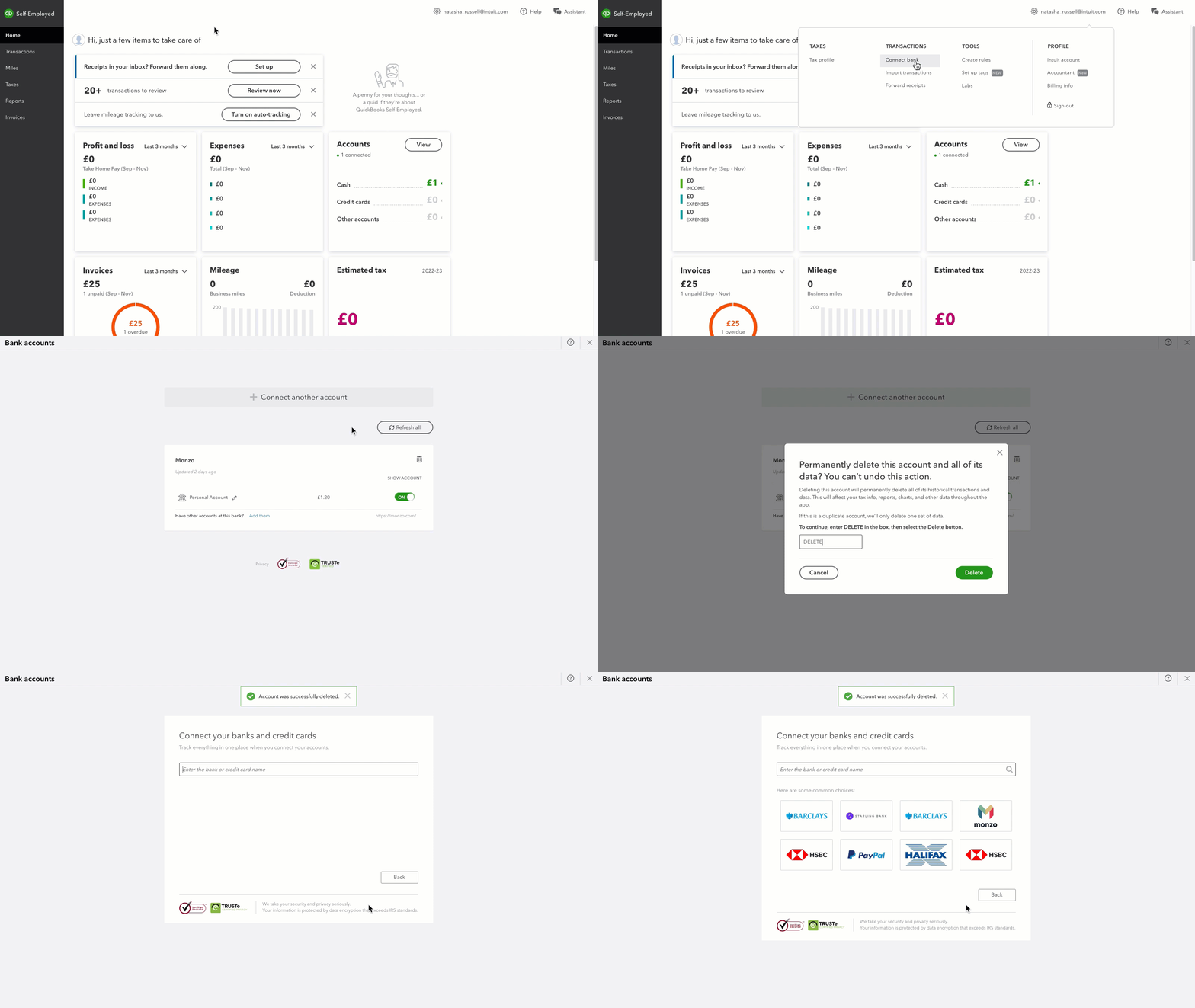
First, open QuickBooks and go to the Chart of Accounts. Find the bank account you want to delete. Click the drop-down arrow next to it. Choose Edit to open the account settings.
Scroll down and look for the Delete option. QuickBooks will ask you to confirm if you want to remove the account. Confirm by clicking Yes or Delete.
Remember, deleting a bank account will remove all its transaction history. Make sure you have backed up any important data before deleting.
Alternative Options
QuickBooks does not allow deleting bank accounts directly. Instead, you can make the account inactive. This hides it from your lists but keeps past data safe.
To make an account inactive, find it in the Chart of Accounts. Then choose the option to make inactive. This keeps your records clear.
Another way is to merge accounts. This means combining one account into another. It helps if you have duplicate or old accounts.
To merge accounts, rename the unwanted account to the name of the one you want to keep. QuickBooks will ask to confirm merging. Once confirmed, all transactions move to the kept account.
Both methods help manage accounts without losing data. They keep your QuickBooks organized and easy to use.
Troubleshooting Common Issues
Error messages often appear when deleting a bank account linked to transactions. QuickBooks does not allow deleting an account with active transactions. Transactions must be removed or reassigned first.
Check the account for any invoices, bills, or payments connected to it. These must be deleted or moved to another account. After clearing transactions, the account can be deleted without errors.
| Issue | Cause | Solution |
|---|---|---|
| Error deleting account | Account linked to transactions | Remove or reassign transactions |
| Account shows in reports | Transactions still exist | Clear transactions before deleting |
| Account can’t be deleted | Account is default or system linked | Change default account settings first |

Credit: quickbooks.intuit.com
Frequently Asked Questions
How Do I Delete A Bank Account In Quickbooks?
To delete a bank account, go to Chart of Accounts. Find the account, click the drop-down, and select Delete. Confirm the deletion to remove the account from QuickBooks permanently.
Can I Undo Deleting A Bank Account In Quickbooks?
No, once a bank account is deleted, it cannot be undone. To keep data safe, consider making the account inactive instead of deleting.
What Happens To Transactions After Deleting A Bank Account?
Deleting an account removes it and all related transactions from reports. Backup your data before deleting to avoid losing important financial records.
Why Can’t I Delete My Bank Account In Quickbooks?
You cannot delete an account linked to active transactions or reconciliations. Clear or reassign those transactions before attempting deletion.
Conclusion
Deleting a bank account in QuickBooks is simple and clear. Just follow the steps carefully to avoid mistakes. Make sure the account has no active transactions before deleting. This keeps your financial records accurate and neat. Taking time to review your accounts helps your bookkeeping stay organized.
Now, you can manage your QuickBooks accounts with confidence and ease.
