
Are you struggling to keep track of your business purchases? Creating a purchase order in QuickBooks can simplify your buying process and help you stay organized.
Imagine having a clear, easy way to request supplies and manage your expenses without the usual hassle. You’ll learn exactly how to create a purchase order step-by-step, so you can save time and avoid costly mistakes. Ready to take control of your purchases and boost your business efficiency?
Keep reading, and you’ll master this essential QuickBooks skill in no time.

Credit: www.dummies.com
Setting Up Quickbooks For Purchase Orders
Start by turning on the Purchase Order feature in QuickBooks. Go to the settings menu, select Account and Settings, then click on the Expenses tab. Find the option for Purchase Orders and switch it on. This allows you to create and send purchase orders easily.
Next, set up your vendor information. Add details like vendor name, address, and payment terms. This makes purchase orders clear and accurate. You can find this option under the Vendors tab. Keeping vendor info up to date helps avoid mistakes.
Finally, customize your purchase order template. Choose what details to show, like your logo, purchase date, and item list. This gives your purchase orders a professional look. Templates can be edited in the Custom Form Styles section. Personalizing templates makes your documents easy to read.
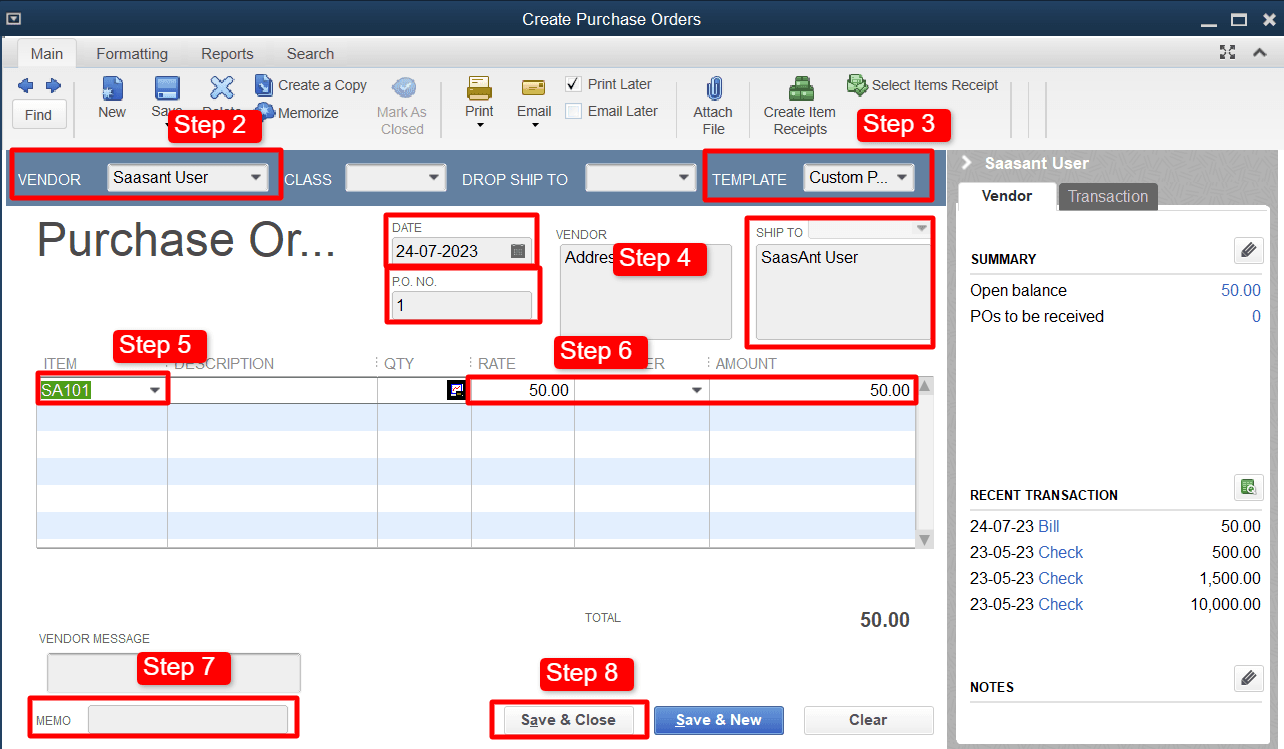
Credit: www.saasant.com
Starting A New Purchase Order
Start by opening QuickBooks and finding the Purchase Orders section. This is usually under the Vendors menu or a similar tab.
Next, choose the vendor you want to buy from. QuickBooks lets you pick from your saved list or add a new vendor.
Now, fill in the purchase order details. Enter the items or services you want to buy, the quantity, and price. Check the order date and expected delivery date.
Double-check all information. Make sure the vendor name, items, and prices are correct before saving the order.
Adding Items To Purchase Order
Start by selecting the products or services you want to order. QuickBooks shows a list to pick from. Choose items carefully to avoid mistakes.
Next, set the quantities and prices for each product. Enter the exact number needed. Check prices to match your deal or budget.
You can also apply discounts or taxes if needed. Discounts lower the total cost. Taxes add the required amount based on rules.
This step helps keep your purchase order clear and accurate. It saves time during billing and payment.
Reviewing And Saving Purchase Order
Check for accuracy by reviewing all details in the purchase order. Confirm the vendor name, item quantities, prices, and delivery dates. Make sure there are no mistakes or missing information.
You can save the purchase order as a draft if you need to review it later. This keeps it editable for changes. When ready, save it as final to lock the details.
Choose to print the purchase order for a paper copy. Or email it directly to your vendor from QuickBooks. This helps speed up the ordering process.
Managing And Tracking Purchase Orders
Monitor order status to know if your purchase is on track. QuickBooks shows updates for each order. Check regularly to avoid delays. You can see if the order is pending, approved, or received. This helps keep your business organized.
When you receive items, match them with the purchase order. This confirms you got the right products. Also, match bills to the order to track expenses well. It helps keep your accounts correct and easy to review.
You can edit or void purchase orders if needed. Change details like quantity or price. Void orders that are no longer needed to avoid confusion. QuickBooks makes these tasks simple and fast.
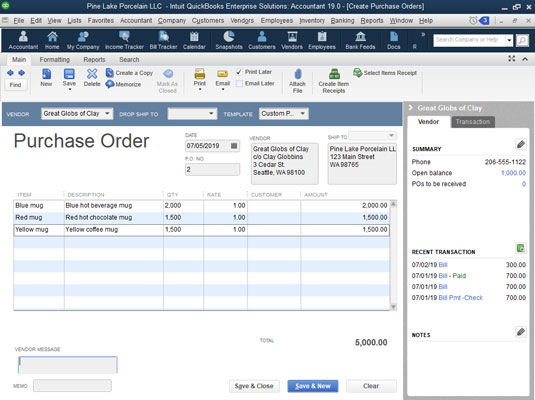
Credit: www.dummies.com
Tips For Efficient Purchase Order Management
Purchase order reports help track all orders easily. They show details like order date, supplier, and status. Use these reports to spot delays and manage budgets well.
Automating recurring orders saves time and avoids missing important purchases. Set up automatic orders for items you buy often. This keeps your stock steady without extra work.
Integration with inventory management links purchase orders directly to stock levels. It helps prevent running out of items or overbuying. This connection makes managing supplies simpler and faster.
Frequently Asked Questions
How Do I Start Creating A Purchase Order In Quickbooks?
To start, log in to QuickBooks and go to the Vendors menu. Select “Create Purchase Orders” to begin a new order. Fill in vendor details, items, and quantities before saving the purchase order.
Can I Customize Purchase Orders In Quickbooks?
Yes, QuickBooks allows you to customize purchase orders. You can add your company logo, adjust fields, and include specific terms. This helps maintain your brand identity and meet business needs.
How Do I Send A Purchase Order To A Vendor?
After creating a purchase order, click “Save and Send. ” Choose email or print options to send it directly to your vendor. QuickBooks also allows you to track the status of sent orders.
What Information Is Required On A Quickbooks Purchase Order?
A purchase order must include vendor name, order date, item details, quantities, and prices. Including shipping terms and payment conditions ensures clear communication with your supplier.
Conclusion
Creating a purchase order in QuickBooks is simple and quick. Follow the clear steps to keep your buying process smooth. This helps track orders and manage expenses well. You save time and avoid mistakes by using QuickBooks correctly. Keep practicing to get more confident with the tool.
A good purchase order makes your business run better every day. Start today and see the difference it brings.
