
Are you looking for a simple way to manage your business finances? Xero accounting software can be the answer you’ve been searching for.
It’s designed to make your accounting tasks easier, faster, and more accurate. Whether you’re new to accounting or just new to Xero, this guide will walk you through everything you need to know. By the end, you’ll feel confident handling your accounts like a pro.
Ready to take control of your business finances? Let’s dive in and discover how to use Xero to its full potential.

Credit: www.vedamani.com
Getting Started With Xero
Starting with Xero is easy and quick. This section helps you begin your journey with the software. Follow these steps to get your account ready and organized.
Creating Your Account
Visit the Xero website to sign up. Enter your email and create a password. Choose a plan that fits your business needs. Confirm your email to activate the account. This process takes just a few minutes.
Navigating The Dashboard
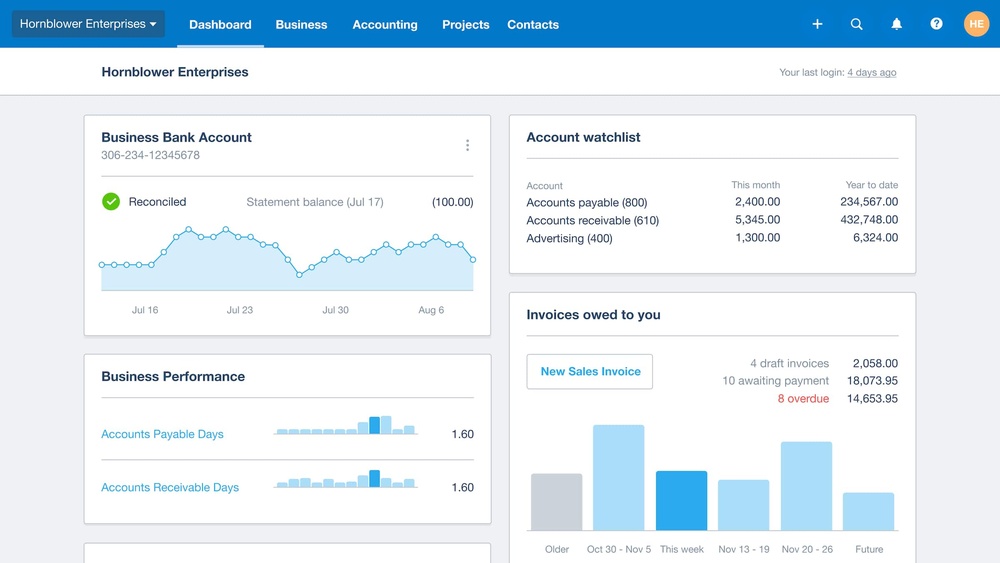
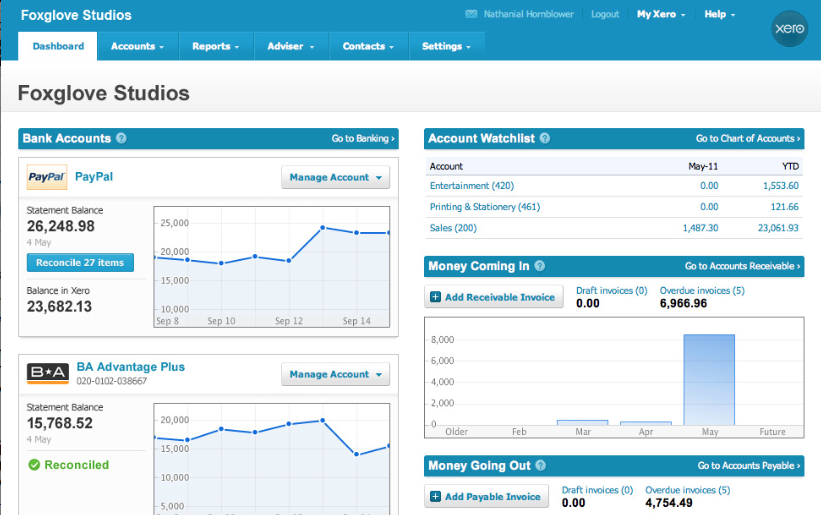
The dashboard is your control center. It shows key information like invoices, bills, and bank accounts. Use the menu to access different features. You can customize the layout to see what matters most. This makes managing finances simpler and faster.
Setting Up Your Organization
Enter your business details in the setup wizard. Include your company name, address, and tax info. Add your logo to personalize invoices and reports. Set your financial year and currency. This helps Xero track your business correctly.
Credit: www.softwareadvice.ie
Managing Contacts And Suppliers
Managing contacts and suppliers in Xero is simple and efficient. It helps keep your business organized and saves time. You can add new contacts, import lists, and organize details all in one place. This makes handling invoices and payments easier.
Adding Customers And Suppliers
To add a customer or supplier, go to the Contacts menu. Click “Add Contact” and fill in the details. Include the name, email, phone number, and address. You can also add payment terms and tax details. Save the contact to use it for invoices or bills later.
Importing Contact Lists
Importing contacts saves time if you have many to add. Prepare your list in a CSV file with columns for name, email, and phone. In Xero, go to Contacts, then click “Import.” Upload your file and match the columns. Review the import and confirm. Your contacts will appear in the system.
Organizing Contact Details
Keep your contact list clean and updated. Use tags or groups to sort customers and suppliers. You can add notes for extra information. Edit details anytime to stay accurate. Well-organized contacts make invoicing and reporting easier.
Handling Invoices And Bills
Handling invoices and bills is a key part of managing business finances in Xero. It helps keep cash flow steady and records clear. Xero makes this process simple, even for beginners. You can create, send, and track invoices easily. Recording bills and expenses is just as straightforward. It keeps your accounts accurate and up-to-date.
Creating And Sending Invoices
Start by selecting the “Invoices” tab in Xero. Click “New Invoice” to begin. Fill in customer details, invoice date, and due date. Add items or services with prices and quantities. Xero calculates totals and taxes automatically. Review the invoice before saving. Send the invoice directly via email from Xero. Customers receive a clear and professional invoice. You can also print or download a PDF copy.
Recording Bills And Expenses
Go to the “Bills” section to enter expenses. Click “New Bill” and fill in supplier details. Add the bill date, due date, and reference number. Enter each item or service with cost and quantity. Attach scanned receipts or documents to the bill. Save the bill to keep records updated. Xero tracks what you owe and when bills are due.
Tracking Payments And Overdue Invoices
Xero shows all invoices and their payment status. Mark invoices as paid when payment arrives. Partial payments update the balance automatically. The software flags overdue invoices for quick review. Send reminders to customers directly from Xero. This helps reduce late payments and improves cash flow. Regularly check payment reports for a clear overview.
Banking And Reconciliation
Banking and reconciliation are key parts of using Xero accounting software. They help keep your financial data accurate and up to date. This section explains how to connect your bank accounts, reconcile transactions, and manage bank rules in Xero.
Connecting Bank Accounts
Start by linking your bank accounts to Xero. This allows automatic import of your bank transactions. You can connect multiple accounts from different banks. Xero supports many banks worldwide. The connection is secure and uses bank-level encryption. Once connected, transactions appear in your Xero dashboard daily.
Reconciling Transactions
Reconciliation means matching your bank transactions with your Xero records. This step ensures your accounts are accurate. Xero suggests matches for each transaction. You only need to approve or adjust them. This process helps catch mistakes and avoid errors. It also saves time compared to manual reconciliation.
Managing Bank Rules
Bank rules automate transaction categorization in Xero. You create rules based on transaction details like description or amount. When a transaction meets a rule, Xero applies the correct category automatically. This reduces repetitive work and speeds up reconciliation. You can edit or delete rules anytime to keep them relevant.
Managing Payroll And Employees
Managing payroll and employees is a key task for any business. Xero accounting software simplifies this process. It helps keep payroll accurate and up to date. You can handle payments, leave, and benefits all in one place. This saves time and reduces errors. Let’s explore how to manage payroll and employees using Xero.
Setting Up Payroll
Start by entering employee details in Xero. Include names, tax information, and payment methods. Set up pay schedules for weekly or monthly payments. Add tax rates and other deductions. Check local laws to ensure compliance. Xero will use this data to calculate pay automatically.
Processing Employee Payments
Review hours worked or salary before payments. Xero calculates taxes and deductions based on setup. Approve payroll with a few clicks. Payments go directly to employee bank accounts. Xero creates pay slips for each employee. These documents show earnings and deductions clearly.
Handling Leave And Benefits
Record employee leave types like sick or vacation days. Xero tracks leave balances and usage. Approve or decline leave requests within the software. Manage benefits such as health insurance or retirement plans. Keep all employee benefits organized and updated. This helps maintain smooth payroll processing every pay cycle.
Generating Reports And Insights
Generating reports and insights in Xero helps you understand your business finances clearly. Reports show your income, expenses, and overall financial health. Xero’s reporting tools are easy to use and give you detailed information. You can track trends and spot issues early. This section explains how to access, customize, and analyze reports in Xero.
Accessing Financial Reports
Start by logging into your Xero account. Go to the Reports menu on the dashboard. Here, you find many types of financial reports. Common ones include Profit and Loss, Balance Sheet, and Cash Summary. Click any report to open it. You can view data for different dates or periods. Reports update automatically with your latest data. This keeps your financial view accurate and current.
Customizing Reports
Xero lets you tailor reports to fit your needs. Change the date range to see specific months or years. Add or remove columns to focus on certain data. Use filters to narrow down by customer, supplier, or account. Save custom settings to use later. This helps you get the exact information you want quickly. Custom reports make it easier to track specific parts of your business.
Analyzing Business Performance
Look closely at your reports to understand your business health. Check profit margins and compare them over time. Notice where costs are high and think about cutting them. Review your cash flow to ensure you have enough money to pay bills. Use graphs and charts for a visual view of trends. These insights help you make better financial decisions every day.
Using Xero Mobile App
The Xero mobile app lets you manage your accounting anytime, anywhere. It helps small business owners and accountants keep track of finances on the go. The app is simple to use and connects smoothly with the desktop version. This makes it easy to stay updated with your business accounts without being tied to a computer.
Features Overview
The app offers many useful features. You can send invoices, add bills, and check your bank transactions. It also lets you capture and upload receipts using your phone’s camera. The dashboard shows your cash flow and account balances in real-time. Notifications keep you informed about important updates and tasks.
Managing Tasks On The Go
Use the app to approve bills and reconcile bank accounts quickly. You can create and send invoices directly from your phone. The app allows you to track expenses and monitor payments easily. Managing tasks on the move saves time and reduces delays in your business processes.
Syncing With Desktop Version
The mobile app syncs automatically with the desktop version. Changes you make on your phone reflect instantly on your computer. This keeps your data consistent and up to date. You can switch between devices without losing any information or progress.

Credit: floatapp.com
Tips And Best Practices
Using Xero accounting software can be simple and effective. Following some tips and best practices helps you work faster and avoid mistakes. These steps ensure your data stays correct, tasks run smoothly, and your account stays safe.
Ensuring Data Accuracy
Enter all financial information carefully. Double-check numbers before saving. Use bank feeds to match transactions automatically. Regularly review reports to spot errors early. Keep your contacts and products updated for clear invoices.
Automating Routine Tasks
Set up repeating invoices for regular customers. Use bank rules to categorize transactions quickly. Schedule automatic reminders for unpaid bills. Connect Xero with other apps to save time. Automation reduces manual work and cuts errors.
Securing Your Account
Use a strong, unique password for your Xero account. Enable two-step authentication for extra protection. Limit user access based on roles and needs. Regularly update your software to fix security issues. Keep an eye on login activity for unusual signs.
Frequently Asked Questions
What Are The Basic Features Of Xero Accounting Software?
Xero offers invoicing, bank reconciliation, expense tracking, and payroll management. It is ideal for small to medium businesses. Its cloud-based platform allows real-time collaboration and automatic data backups for efficiency and security.
How Do I Set Up My Business In Xero?
Start by entering your business details and financial settings. Connect your bank accounts for automatic data import. Customize invoice templates and invite your team for collaboration. Follow Xero’s setup wizard for a smooth start.
Can Xero Integrate With Other Business Apps?
Yes, Xero supports integrations with over 800 apps including payment processors, CRM, and inventory tools. These integrations help streamline workflows and improve financial management by syncing data across platforms.
How Secure Is My Data In Xero?
Xero uses advanced encryption and multi-factor authentication to protect your data. Regular security audits and data backups ensure your financial information remains safe and accessible only by authorized users.
Conclusion
Using Xero accounting software can simplify your business tasks. It helps track expenses, send invoices, and manage payments easily. The software saves time and reduces errors in your accounts. Start with the basics and explore its features step by step.
Regular use will improve your financial control and reporting. Xero fits small and growing businesses well. Keep practicing, and you will handle your accounts with confidence. Simple tools can make your accounting less stressful every day.
